
Remote Replica
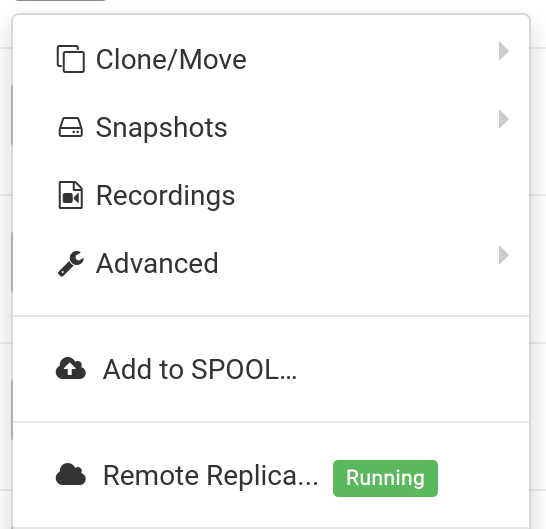
The Remote Replica feature is meant to duplicate, or clone, your Fresh Start Desktop onto a different server, typically in another location. Once it’s set up, any modifications to your original machine are quietly and automatically copied over to the replica in the background, with no user intervention needed.
Remote Replica is a highly useful feature with a range of applications; two of these are detailed below.
Note: At present, Remote Replica can only be deployed with Fresh Start machines, though it is also compatible with DaDesktop for Work (DD4W).
First: Create a Remote Replica (clone) of your Desktop on a server in an alternate data centre
For added peace of mind, you might want to set up a Remote Replica of your Desktop on a server in a separate data centre, just in case the primary server becomes inaccessible for any reason. Should that happen, you can simply carry on working from the Remote Replica exactly where you had left off.
Our Fresh Start machine is initially hosted on the UK Data Center, for instance bd3uk.

Select the Data Centre you want to use for the Remote Replica, typically one that is different from the existing machine. You could opt for a different Data Centre or even a separate country.

The Remote Replica desktop is now in the process of being created. The time it takes will depend on the replica’s location relative to the original, as well as the size of the Desktop. You may continue your work on the original machine during this period if needed.

Restoring a Remote Replica
If you ever find yourself unable to access your FreshStart Desktop for any reason, you have the option to restore the Remote Replica that was previously configured.


After the Remote Replica is put into use, you cannot revert to the original Desktop. However, this is inconsequential since it is an exact clone.
Do note that after you switch to the Remote Replica Desktop, the replication process stops. Should you want another replica, you must go through the initial steps once more to establish a new Replica Desktop.


Second scenario: Using a Replica for FreshStart in a different geographic region to minimise connection latency
Remote Replica proves exceptionally handy when you require a replica of your Fresh Start machine that’s geographically nearer while you develop course content on it. For instance, imagine a trainer based in Germany delivering a course in South Africa. Such situations are quite typical with DaDesktop, given how seamlessly the system manages courses of this nature.
In this scenario, you wouldn’t want to set up your course’s Fresh Start Desktop on a South African server because the connection latency would be excessive. So instead, you create a Remote Replica of your Desktop located in Europe to keep latency minimal. The replica will then stay synchronised with any changes you make.
Once you’ve finished your work on the Fresh Start Desktop, restore the Remote Replica to the trainer machine situated in South Africa. This enables swift copying to the trainer machine and to the participants.